Tutorial Intro
Let's discover Quonfig in less than 5 minutes.
Getting setup with Quonfig should take you 5 minutes, but only if we start right now ;)
Environments
Click on environments to view environments. We've added Development, Staging and Production for you.
Get your SDK key
Your app connects to Quonfig with an SDK key, found on the SDK Keys page. A workspace shares one development SDK key across the whole team — SDK keys carry no identity, so there's no such thing as a personal one. Grab your workspace's development key (or create it if the workspace doesn't have one yet).
We're building a server example, so use the backend key (qf_sk_…); browser
and mobile apps use a frontend key (qf_pk_…).
For how SDK keys differ from qfg login and API keys — and why one shared
development key is the intended setup — see
Keys & Credentials.
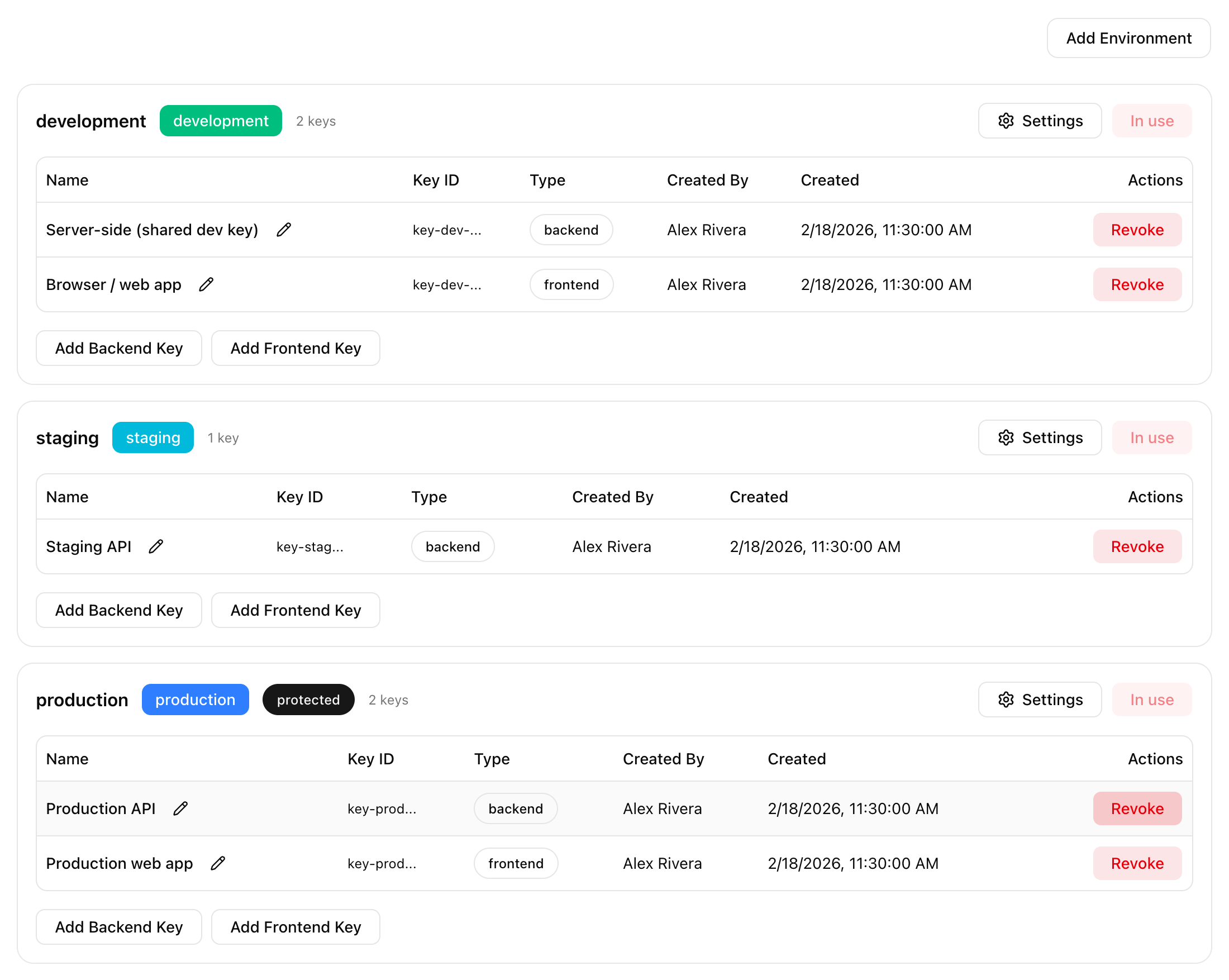
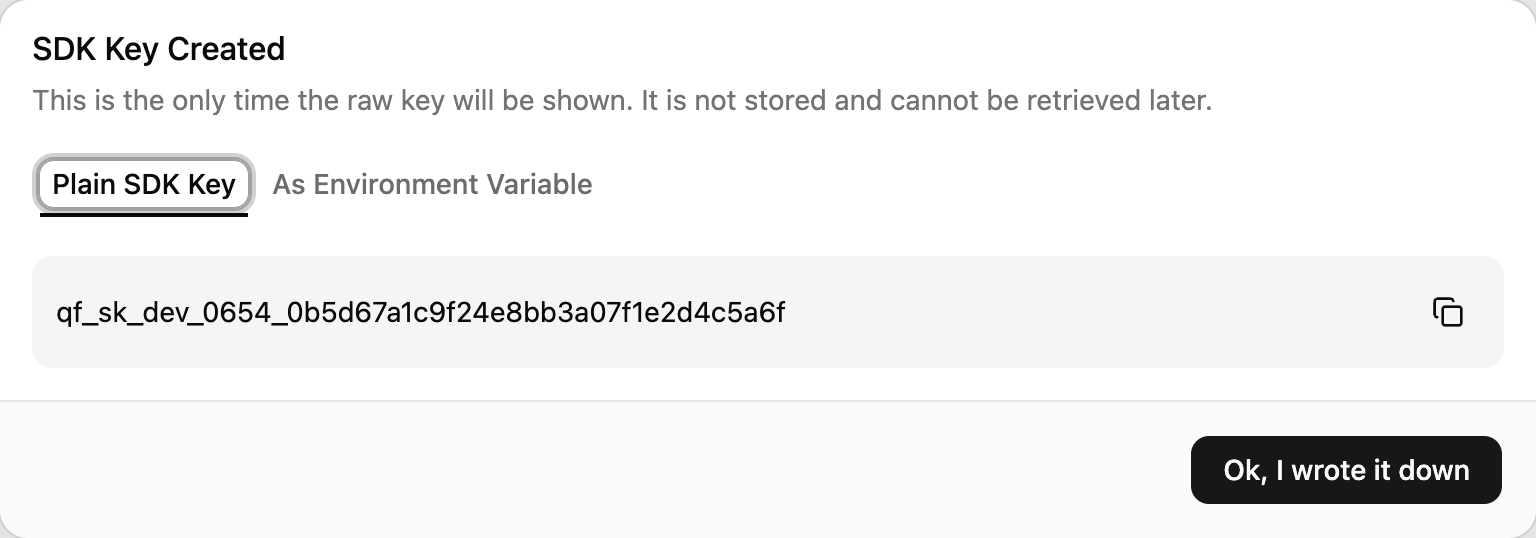
Under your development environment, click Add Backend Key. Copy the key down now — we show it to you only once and store only a secure hash. If you lose it, just create another; making new keys is how you rotate them.
Adding a Feature Flag
Now that we have an SDK key, we're ready to go. Select Flags from the navigation and then choose "Add Flag".
Let's name our flag features.example-flag and use the default type (bool).
Quonfig suggests that you name things all in lowercase, with . as a logical separator and - between words.

Click Save and now we can take a look at our new feature flag. There are 4 elements to call your attention to.
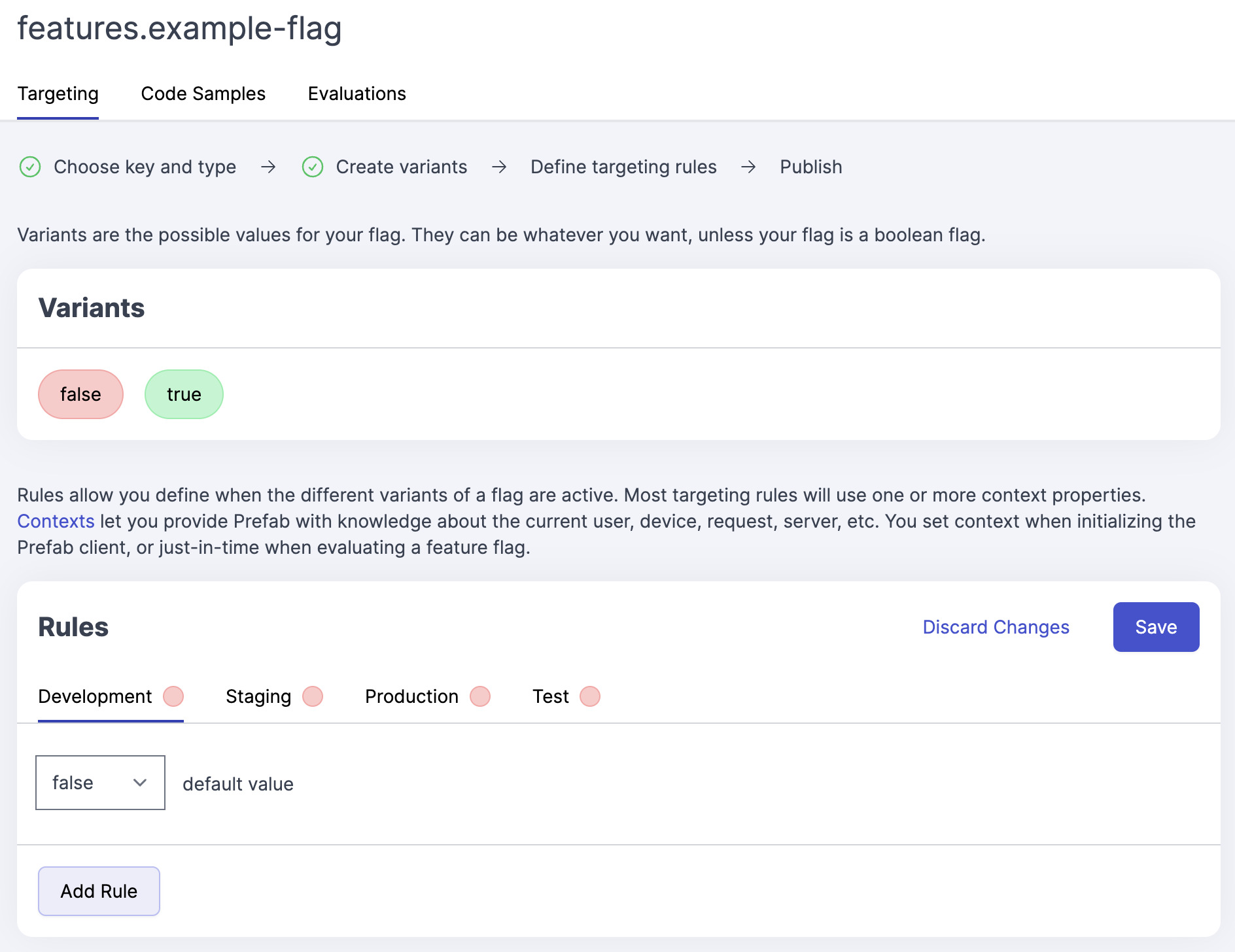
There are 5 areas to note:
- Variants The app has automatically created two boolean variants for us. Feature flags can return strings or numbers as well, but booleans are most common.
- Rules Each environment gets a tab for its own rules.
- Save Once we save the default value rule, we can publish our flag. Publishing makes the flag available to our clients.

- Code Samples snippets live here, making it easy to copy out the correct code into your application.
- Evaluations once we start running the client, we'll be able to see evaluation charts here.
Configuring our Feature Flag
Time for some fun. Let's set up a feature flag that will show us a bit of the power of Quonfig. For this example, let's say that we have a new thing we're ready to ship. We want to get ship to everyone in our Beta group. Additionally, since the beta group might not reflect our whole user base, so we also want to rollout to 5% of all traffic.
For the rollout, click the false dropdown and pick "Rollout". Now enter 95 as your percent for false and 5 for true.
Now click "Add Rule" to add our customer group rule. Select true then enter user.group for the when, is one of for the operator and beta for the values field.
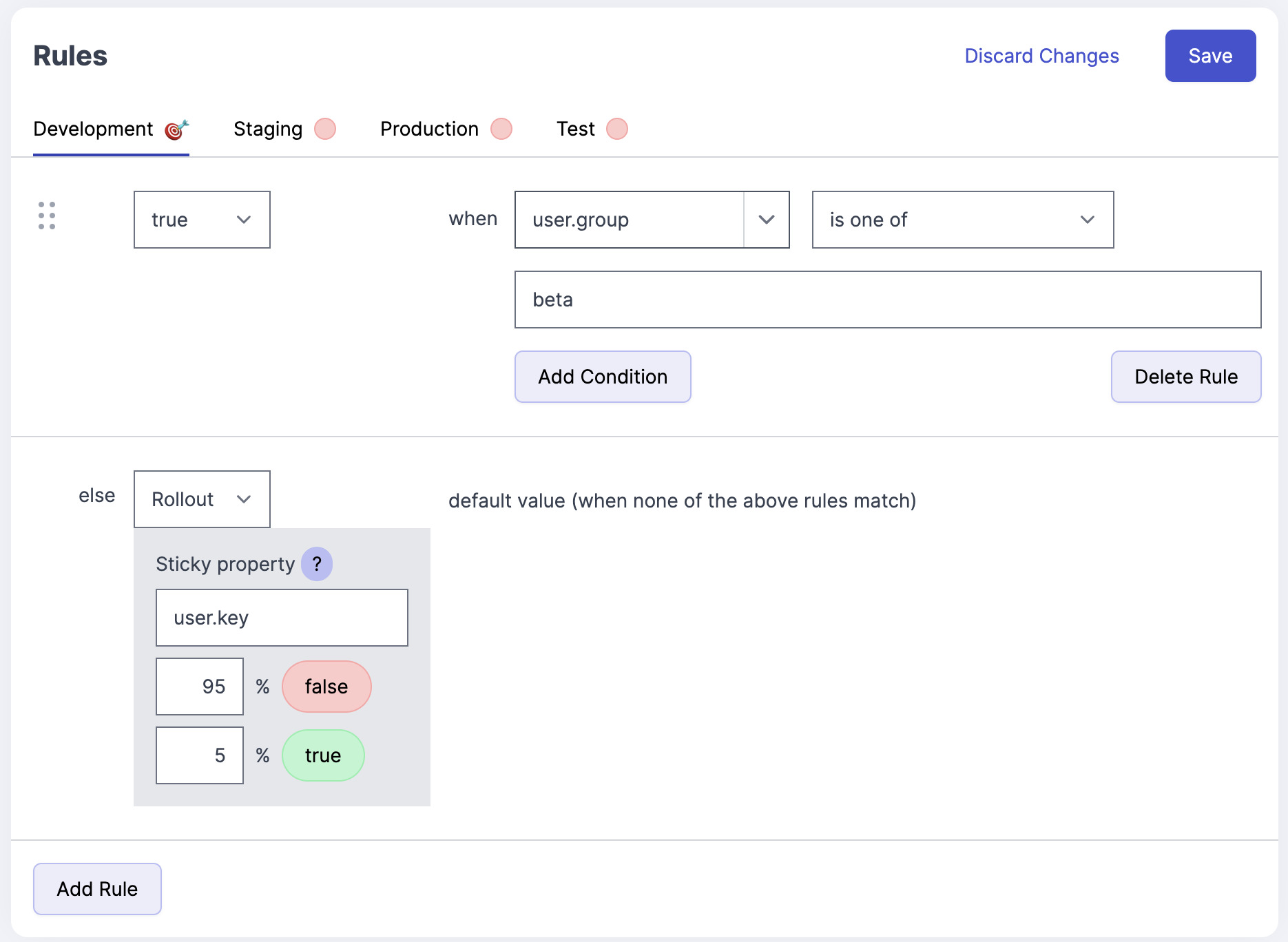
Save and publish.
The order of the rules matters. Rules are evaluated from top to bottom and the value of the first matching rule is used.
You can drag the rules to re-order them but the default rule sticks to the bottom.
Use in Code
To use the flag, all we need to do is initialize a client with the backend key we created and
- Ruby
- Java
- Node
- Python
Quonfig.init(sdk_key: "<SDK-KEY>, or set ENV var QUONFIG_BACKEND_SDK_KEY")
# Users in the beta group will always return true

context = { user: { key: rand(1000)}}
# 5% of other users will return true
puts Quonfig.enabled?("features.example-flag", context)

# 100% of users in the beta group will return true
context[:user][:group] = "beta"
puts Quonfig.enabled?("features.example-flag", context)
QuonfigClient client = new QuonfigClient(new QuonfigClient.Options()
  .setSdkKey("SDK-KEY, or set ENV var QUONFIG_BACKEND_SDK_KEY"));
FeatureFlagClient featureFlagClient = client.featureFlagClient();

// true for 5 % of the users
featureFlagClient.featureIsOn(
      "features.example-flag",
      QuonfigContext.newBuilder("user")
        .put("key", Math.random())
        .build()
    )

// true because of the beta group rule
featureFlagClient.featureIsOn(
      "features.example-flag",
      QuonfigContext.newBuilder("user")
        .put("group", "beta")
        .build()
    )
import { Quonfig } from "@quonfig/node";

const quonfig = new Quonfig({
  sdkKey: "SDK-KEY",
});
await quonfig.init();

// true for 5% of the users
const context = new Map([["user", new Map([["key", Math.random()]])]]);
quonfig.isEnabled("features.example-flag", context, false);

// 100% of users in the beta group will return true
const context = new Map([
  [
    "user",
    new Map([
      ["key", Math.random()],
      ["group", "beta"],
    ]),
  ],
]);
quonfig.isEnabled("features.example-flag", context, false);
quonfig = Client(Options(sdk_key="SDK-KEY, or set ENV var QUONFIG_BACKEND_SDK_KEY"))

context = { "user": { "key": random.randrange(1000)}}
# 5% of other users will return true
print(quonfig.enabled('features.example-flag', context))

# 100% of users in the beta group will return true
context["user"]["group"] = "beta"
print(quonfig.enabled('features.example-flag', context))
And that's it! A nice feature flag with a complex rule and a partial rollout in 5 minutes.
For this example, we used "Just in Time" context, passing the context block into the enabled? methods. In general, you'll set the context once at the beginning of the request and then use the enabled? method without the context block. Read more about context here.
TypeScript Type Generation (Optional)
If you are using Node.js or React with TypeScript, the Quonfig CLI can generate type-safe definitions for all your flags and configs. This gives you autocomplete and compile-time safety in your IDE.
Install the CLI globally (requires Node 18+):
npm install -g @quonfig/cli
Then log in, pull your workspace config, and generate types:
qfg login
qfg pull --dir ./my-config
qfg generate --dir ./my-config                       # react-ts (default)
qfg generate --dir ./my-config --targets node-ts     # Node.js
Set QUONFIG_DIR=./my-config once (e.g. in .env) to avoid passing --dir every time.
For full details on generated output files, configuration options, and IDE integration, see the CLI documentation.