Beta Releases
Beta Releases allow you to mitigate risk of bugs by slowly rolling out a feature to your audience.
Using feature flags and Quonfig's Rules and Segmentation you can enable a feature for precisely who you want, when you want.
Let's walk through a common example beta release rollout.
Example rollout
A common progression for rollout is
- The people who worked on the feature: developers, designers, QA, PMs, etc.
- Your entire org
- A growing percentage of users
This progression allows the people who are closest to the feature to dogfood it first. Once they've fixed any rough edges they find, the rest of the org can test and uncover issues. Next you can slowly ramp up the percentage of other users the feature is available to.
Feature flag code
You'll only need to set up the feature flag check once in your code and then you can modify the rules in the Quonfig app.
A flag check returns false unless the flag resolves to true, through a matching rule or the flag's fallback value. It also returns false when the flag doesn't exist yet, so you can ship your code before you create the flag in Quonfig and trust that everyone goes down the false code path.
- Ruby
- Java
  if Quonfig.enabled?("my-feature-name", { user: { key: current_user.tracking_id, email: current_user.email } })
    # serve the new feature
  else
    # serve the old version of the page
  end
  ContextSet ctx = new ContextSet()
      .withNamedContext("user", Map.of(
          "key", user.getTrackingId(),
          "email", user.getEmail()));

  if (quonfig.featureIsOn("my-feature-name", ctx)) {
    // serve the new feature
  } else {
    // serve the old version of the page
  }
Rules
Rules are evaluated in order. You can drag and drop rules to rearrange them. The first matching rule determines which variant is served. Read more.
To model the example rollout above in Quonfig, create a bool flag (my-feature-name) and leave its default rule serving false. Save and publish. You can ship the code now: everyone gets false until you add rules.
Each step below adds a rule on the Production tab. Save and publish after each one.
The people who worked on the feature
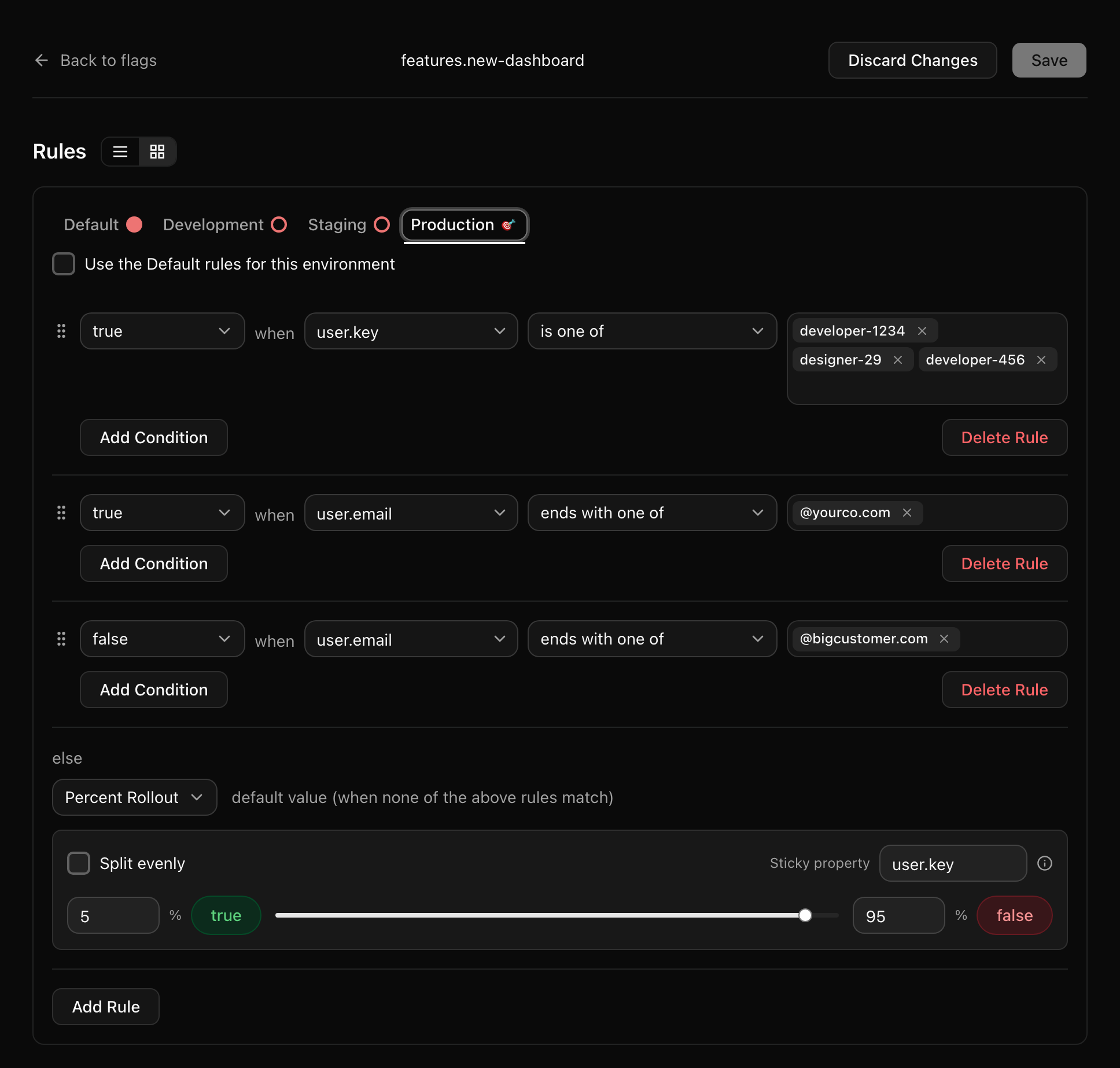
Add a rule that serves true when user.key is one of the people who built it, for example developer-1234, designer-29 and developer-456. (See Tracking IDs for a key that survives the move from anonymous to logged in.)
Once time has passed and we're ready to open this up further, we'll add our next rule.
Your entire org
Add a rule that serves true when user.email ends with one of @yourco.com.
Time passes while the org tests the feature. Once we're confident that we're ready for customers to see this, we change the fallback.
A growing percentage of users
Change the else value (the default for everyone no rule matches) from false to Percent Rollout. Start small: 5% for true and 95% for false, with user.key as the sticky property so each user stays in the same bucket.
This is the fun part where you talk to customer support and watch your error tracker.
What if things are broken? Set the rollout back to 0% for true while you fix bugs. Your customers are on the old code path again immediately.
Once you've dealt with any issues, you can slowly ramp the 5% up to 100%, publishing and watching for issues each time.
Exceptions
What if you want to roll this feature out slowly but you need to make sure that your biggest customer doesn't see it until you have successfully rolled it out to everyone else first?
No problem. Using what we learned with our "Your entire org" rule, add a rule that serves false when user.email ends with one of @bigcustomer.com. Drag it above the percent rollout (rules are checked top to bottom, and the else value always comes last).
Because rule evaluation happens in order, when we see that the user matches @bigcustomer.com we'll return false for the flag check and they won't see the new feature.
Once you've ramped the rollout up to 100% and you're ready for this customer to see the feature, delete this exception rule.
Example Screenshot
Here are all the rules above, plus the exception, as they look in the Quonfig UI: