Percentage Rollouts
You've built something new and want to turn it on for a slice of traffic
first: 5%, then 25%, then everyone. In Quonfig that's a percentage
rollout: a flag whose value is a weighted split such as true 10% /
false 90%.
The percentage lives in Quonfig, not in your code. Your code only checks the flag, and you change the percentage without a deploy.
1. Set the percentage
- Open the flag and select the environment tab, for example Production.
- Clear Use the Default rules for this environment if it's checked.
- In the rule's value dropdown, choose Percent Rollout.
- Type
10next totrue, or drag the slider. The other side fills in the rest. - Click Save.
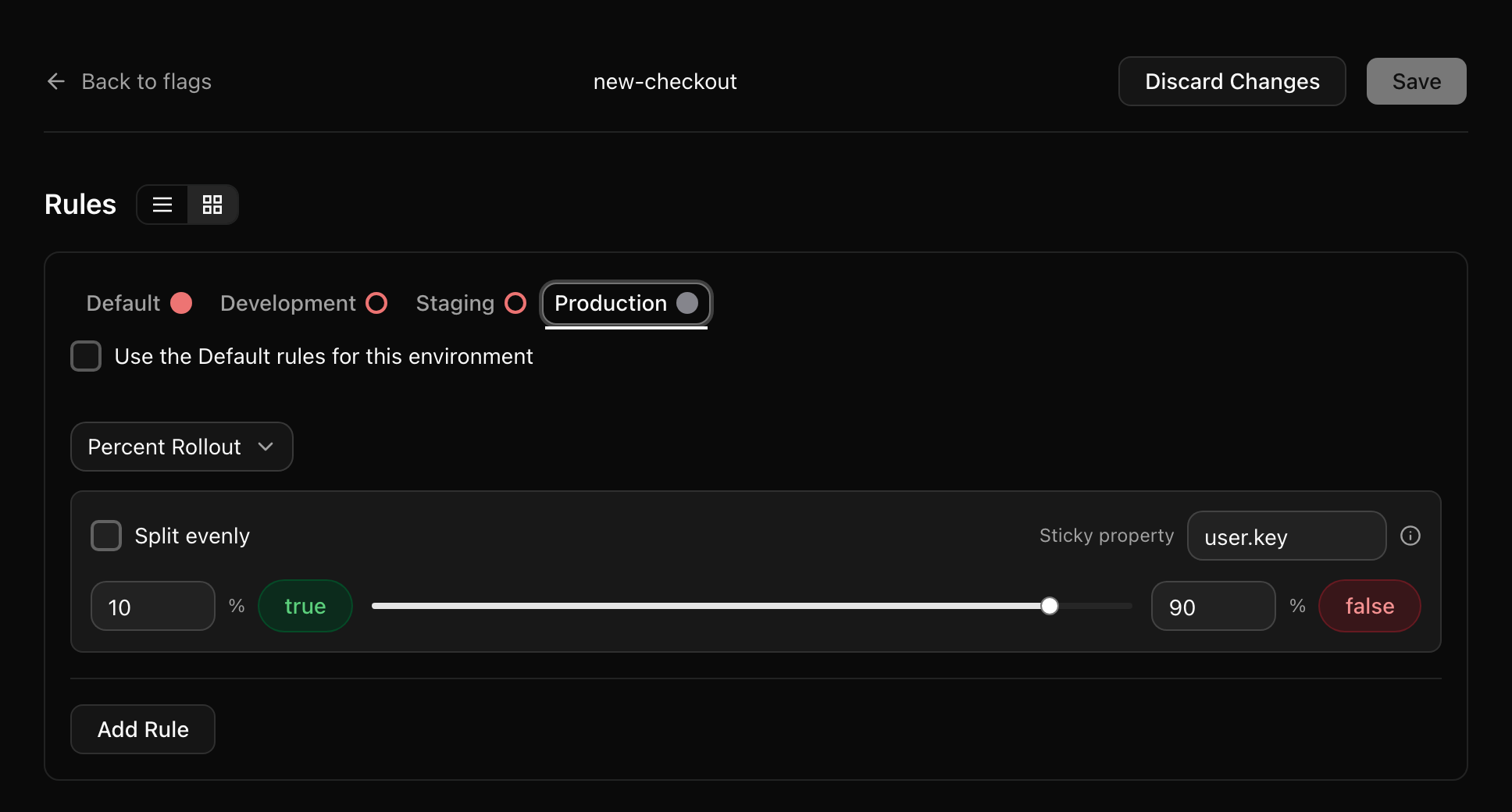
Flags with more than two values (an A/B/C test, say) get one percentage box per value. Split evenly divides traffic equally between them.
Using the CLI instead
qfg set-rollout new-checkout --environment production --true-percent 10
For flags with more than two values, pass weights that add up to 100:
qfg set-rollout checkout-button-color --environment production --weights "red:34,green:33,blue:33"
See set-rollout for every option.
2. Check the flag in code
This is a normal flag check. The context you pass is what makes the rollout sticky (see the next section).
- Node
- Go
- Python
- Ruby
if (quonfig.isEnabled("new-checkout", { user: { key: user.id } })) {
  return newCheckout();
}
ctx := quonfig.NewContextSet().
    WithNamedContextValues("user", map[string]interface{}{"key": user.ID})

if enabled, _ := sdk.FeatureIsOn("new-checkout", ctx); enabled {
    return newCheckout()
}
if client.is_feature_enabled("new-checkout", contexts={"user": {"key": user.id}}):
    return new_checkout()
if Quonfig.enabled?("new-checkout", { user: { key: user.id } })
  new_checkout
end
If you already set context per request (the usual setup, see Context), you don't need to pass it here.
3. Choose the sticky property
Every percentage split has a sticky property. It decides how each
evaluation picks a side. It's the Sticky property field above the
slider, and it starts as user.key.
Quonfig hashes the flag key plus the value of that property, so the same value always lands on the same side. You have three choices:
| Sticky property | What happens | Use it for |
|---|---|---|
user.key (default) | Each user always gets the same answer | Product features, A/B tests |
Another property, such as organization.key, device.id or a cookie visitor.id | Everyone with the same value gets the same answer, so a whole account flips together | Account-level rollouts, logged-out traffic |
| Blank | A new random pick on every evaluation | Moving load to a new pipeline or backend, sampling, shadow traffic |
Sticky to the user. The usual choice. A user who gets the new checkout keeps getting it on every request and every server, so their experience doesn't flicker.
Sticky to something else. Bucket on whatever unit should move together.
For a B2B feature, organization.key keeps teammates on the same side. For
anonymous visitors, put an id from a cookie in context and bucket on it:
quonfig.isEnabled("new-landing-page", { visitor: { id: cookies.visitorId } });
The sticky property doesn't have to be a key. A non-key property such as
visitor.id isn't recorded or billed as a tracked context (see
percentage rollouts without a key).
Not sticky. Clear the sticky property and each evaluation rolls the dice
again, using your weights. With a 10% rollout, about 10% of calls return
true, spread across all requests, users and servers. You don't need any
context for this, and you don't need to generate your own random number.
This is the right setting when the unit is the request, not the person: "send
10% of jobs through the new pipeline."
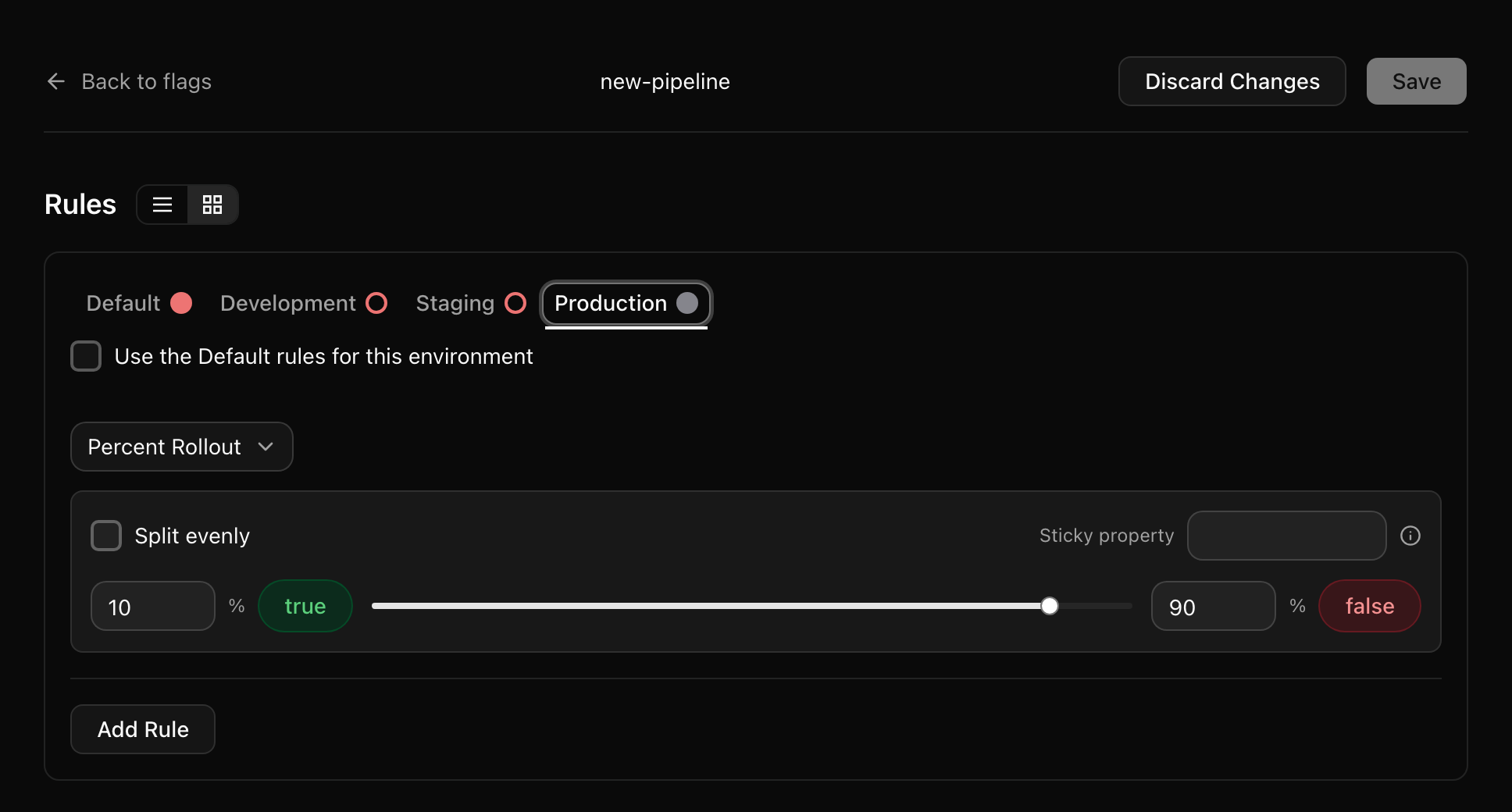
Setting the sticky property from the CLI
qfg set-rollout takes the sticky property as --hash-by:
qfg set-rollout new-checkout --environment production --true-percent 10 --hash-by organization.key
You only need --hash-by on the first step. Each later run keeps the sticky
property the rollout already has, so ramping from 10% to 50% doesn't reshuffle
anyone. A new rollout defaults to user.key. Pass --hash-by "" for a
non-sticky rollout. (Before qfg 0.10.0, every run without --hash-by reset the
property to user.key, so pass it on every step if you're on an older version.)
Watch out: a missing sticky property is not random
If the sticky property is set but the context doesn't include it, Quonfig
doesn't pick randomly. It hashes an empty value, so every context
without the property lands on the same side. That's usually all true or
all false for that traffic.
For example, the sticky property is user.key, and a background job checks
the flag with no user in context. Every job gets the same answer.
When this happens the SDK logs one warning per flag, and the evaluation
details include hashPropertyMissing: true. Two fixes:
- Pass the property: add the user, org or visitor to context.
- Change the sticky property to something the caller has, or clear it if you want a random pick per call.
Dialing up
Raise the percentage in steps: 1% → 10% → 50% → 100%. Each step is the same
edit: change the number, then Save. On a two-way split, users who already
get true keep getting true as the percentage goes up. Only new users
join. Lowering it removes the most recently added users first.
Don't change the sticky property mid-rollout. It reshuffles everyone.
Rules run top to bottom, and the first match wins. Put targeting rules, such
as "internal users get true", above the rollout with Add Rule, and
those users get their value whatever the percentage.
When you reach 100% and it's been stable, change the dropdown from
Percent Rollout to true, then remove the flag check from your code.
Dialing up from the CLI
Run set-rollout again with the new percentage:
qfg set-rollout new-checkout --environment production --true-percent 50
It keeps targeting rules above the split. --replace-targeting deletes them
so everyone goes through the split. At 100%, switch to a plain value:
qfg set-default new-checkout --environment production --value true